This is the start of a new game development series. I will be showing you basics of working with Unity game engine. Unity is used mainly in game development (games like Inside, Cuphead and Hollow Knight), movie CGI scenes and for animated movies.
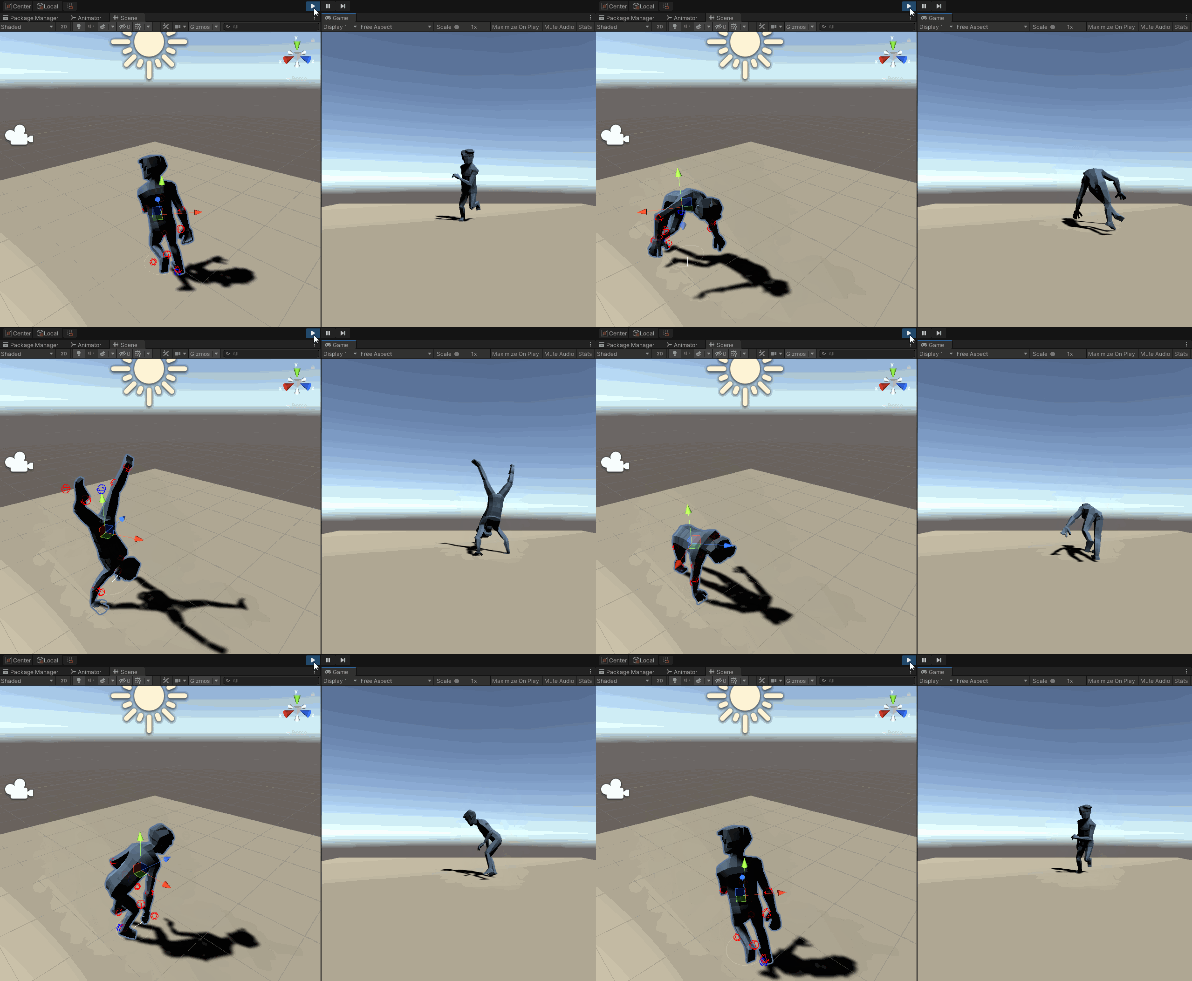
This part is going to be about the basics of using animations for your models. We’ll be creating this scene:
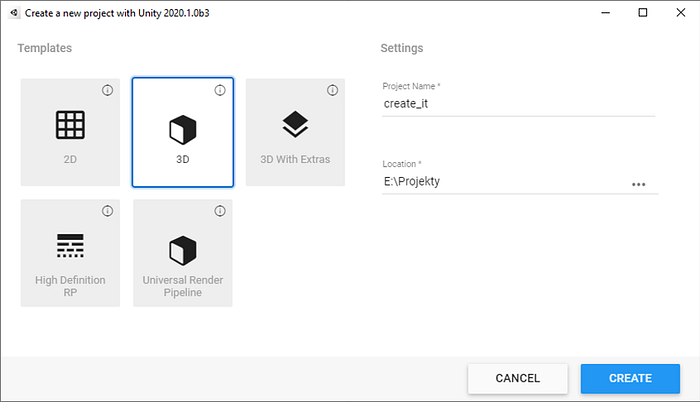
 First I create a new 3D project:
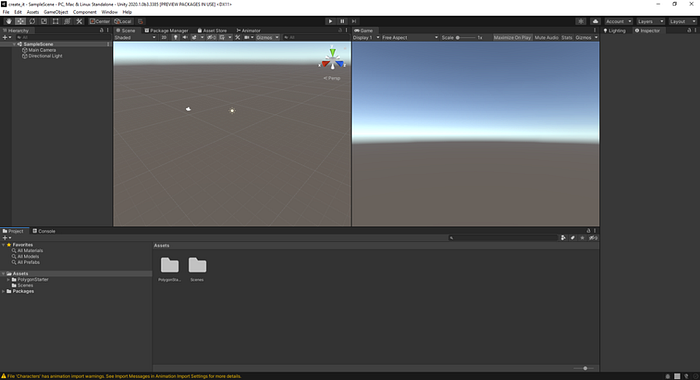
 Unity has the following default layout. Left window is for 3D manipulation and right window show the camera projection. In the left panel you can work with all your game objects and the right panel is used for configuration. You can find imported sources, models, animations, sounds etc. in the bottom panel.
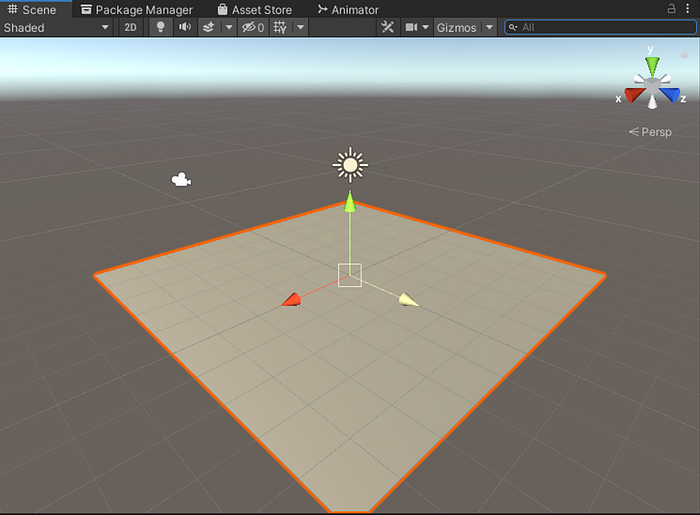
 First I create a 3D object, so called “Plane” (GameObject — 3D Object — Plane).
It will serve as the “floor” for the 3D model, so it doesn’t fall through the infinite game space. Unity utilizes classic 3D manipulation controls, for moving, rotating and scaling.
First I create a 3D object, so called “Plane” (GameObject — 3D Object — Plane).
It will serve as the “floor” for the 3D model, so it doesn’t fall through the infinite game space. Unity utilizes classic 3D manipulation controls, for moving, rotating and scaling.
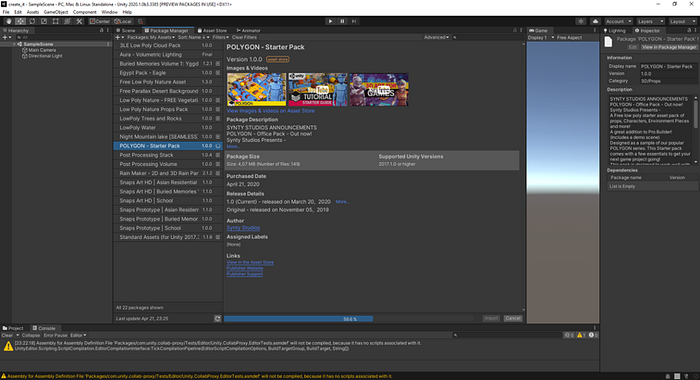
 Now I need to get some 3D models. I will use the free Polygon starter pack, which contains basic models and environments. You can import it into unity via Package Manager. All the packages added in the web interface are synchronized into Unity via your account.
 Next I create an empty object, which will serve as a parent for the animated 3D model (GameObject — Create Empty). The object will get pasted right in the middle of the space, coordinates (0,0,0), the center of the game space.
To keep it tidy I rename the object to “Player”. In the assets explorer window I search for SM_Character_Male_01 in the polygon starter pack.
Next I create an empty object, which will serve as a parent for the animated 3D model (GameObject — Create Empty). The object will get pasted right in the middle of the space, coordinates (0,0,0), the center of the game space.
To keep it tidy I rename the object to “Player”. In the assets explorer window I search for SM_Character_Male_01 in the polygon starter pack.
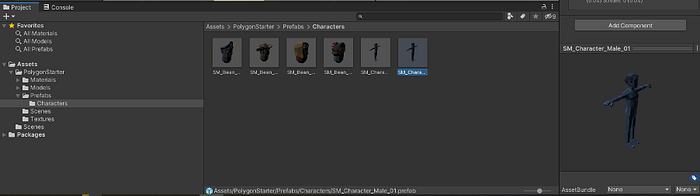 I then drag the model into the left Object explorer, right onto the Player object.
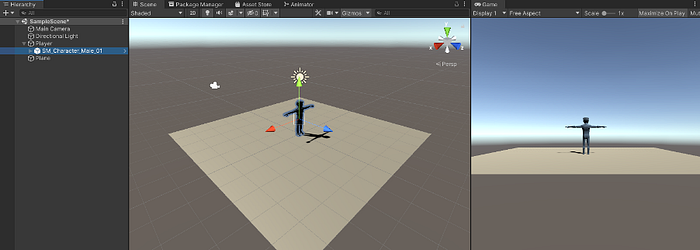 All I need to do now is to add the animation. I don’t have the equipment or time to animate this model by myself, so I use the web mixamo.com, where I download a breakdance animation. You can find all sorts of game animations here — player death, walking, running, punching etc.
Next step is to import the animation into Unity. In the asset explorer I (right click-Import New Asset) and I also create Animation Controller (right click — create — animator controller).
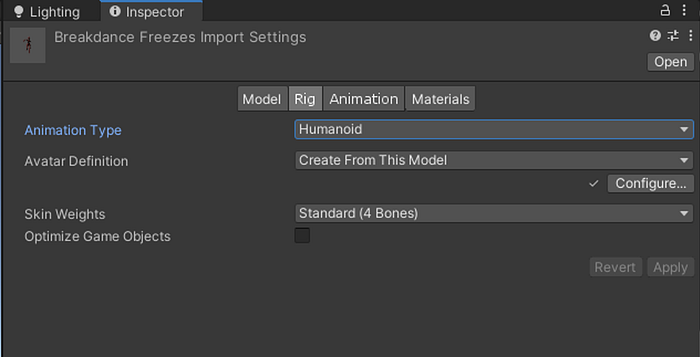
Then I select the animation and change its parameters, so I can manipulate with it. I set the type to Humanoid and apply. I also rename it to breakdance (in the Animation tab).
All I need to do now is to add the animation. I don’t have the equipment or time to animate this model by myself, so I use the web mixamo.com, where I download a breakdance animation. You can find all sorts of game animations here — player death, walking, running, punching etc.
Next step is to import the animation into Unity. In the asset explorer I (right click-Import New Asset) and I also create Animation Controller (right click — create — animator controller).
Then I select the animation and change its parameters, so I can manipulate with it. I set the type to Humanoid and apply. I also rename it to breakdance (in the Animation tab).
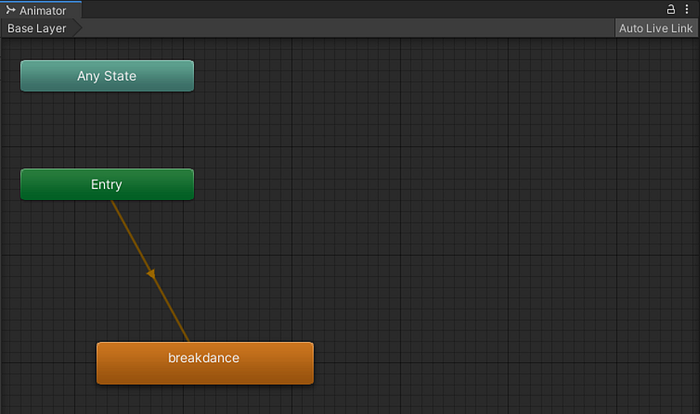
 Then I just select the new Animation Controller, and drag the breakdance animation into the Animator window that just popped up. It automatically connects to the Entry state.
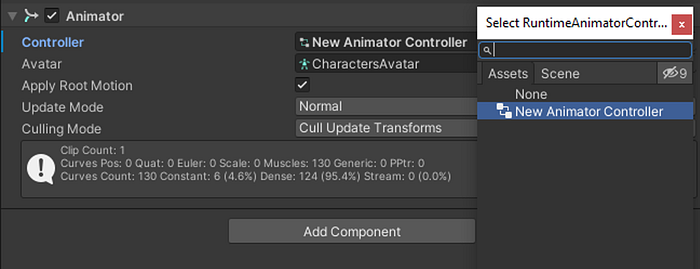
 All you need to do now is to attach this Animation Controller to the character object (Animator component), press Play and the animation is done!
 Next part of this series is gonna be about basics of controlling a 3D FPS character in Unity.
If you are just starting to learn how to develop games, you can follow my Skillshare course on Unity development for beginners:
Next part of this series is gonna be about basics of controlling a 3D FPS character in Unity.
If you are just starting to learn how to develop games, you can follow my Skillshare course on Unity development for beginners: