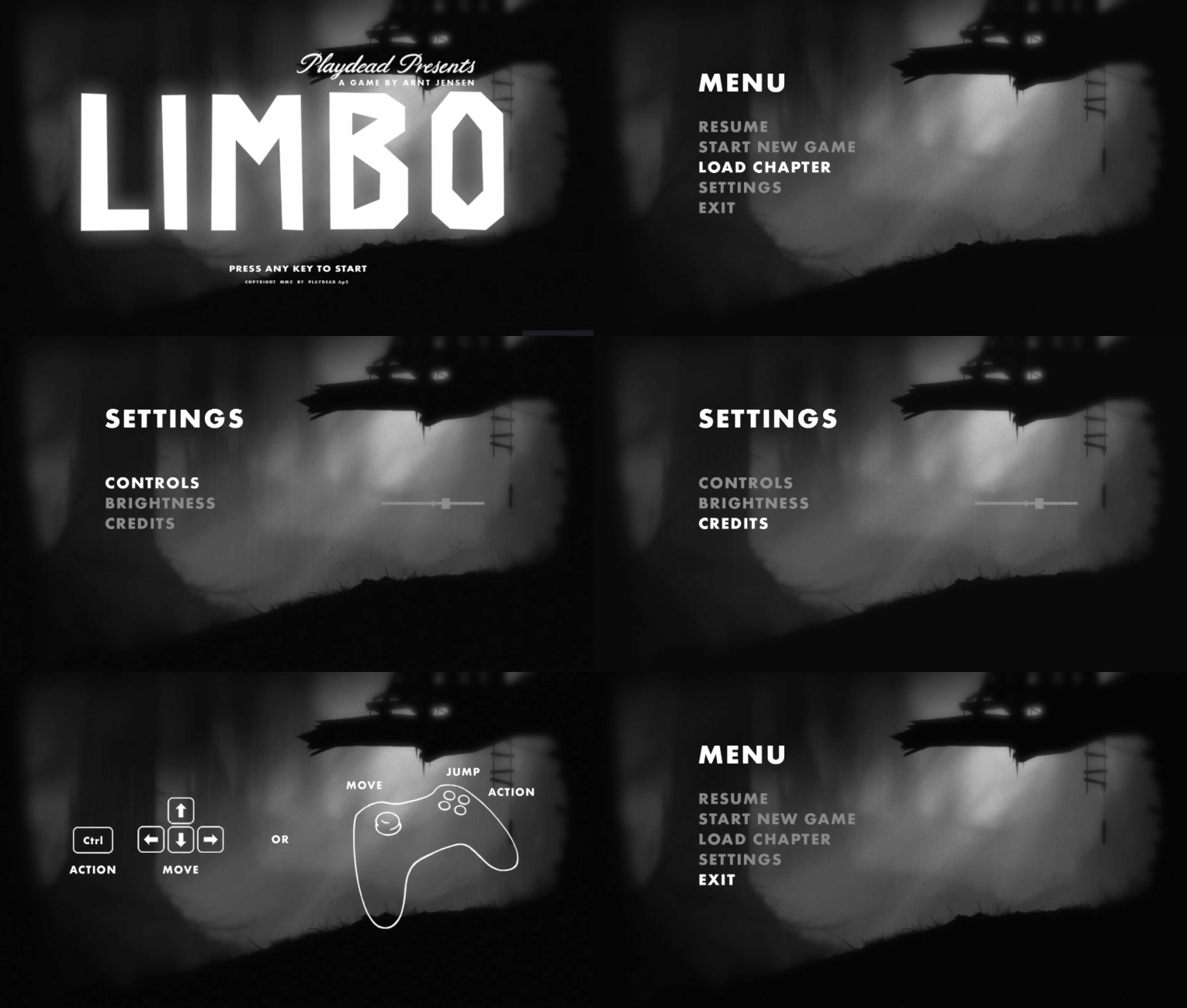
In this tutorial I will replicate the menu style from the famous 2010’s game, Limbo:
 (Previous part of the tutorial here).
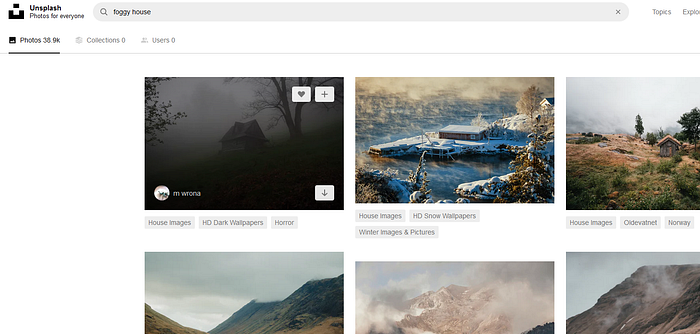
Download an atmospheric image, e.g. from unsplash:
(Previous part of the tutorial here).
Download an atmospheric image, e.g. from unsplash:
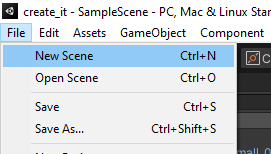
 Create a new scene in Unity:
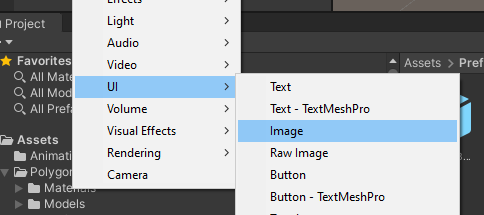
 Add the image UI into the scene
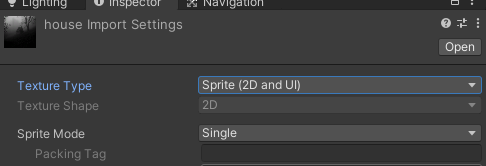
 Import the image and change the texture type to UI:
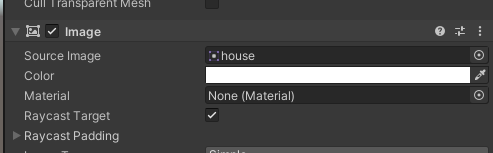
 Drag the image onto the source image:
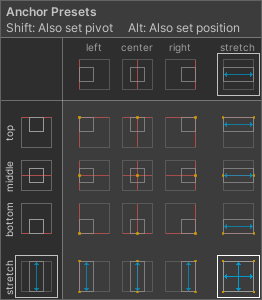
 Change the anchor point to expand (holt alt and pick the bottom right option)
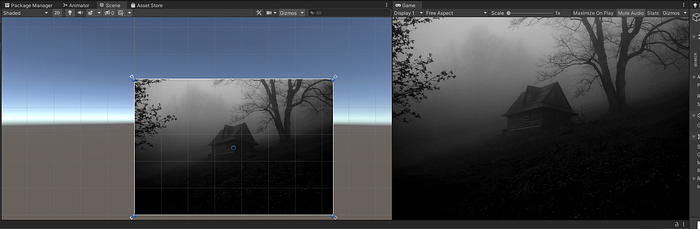
 Now it looks like this (I increased the contrast of the image and converted it to black and white):
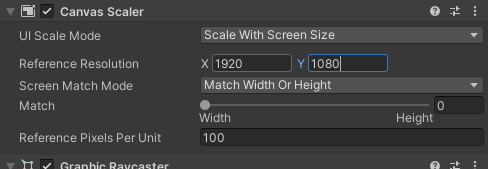
 Click on canvas an change the UI scale mode to “Scale with screen size”. Change to your target resolution.
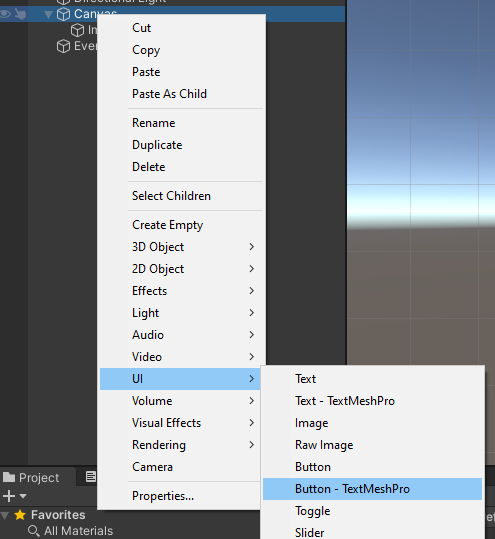
 Add a new Button (TextMeshPro) to the Canvas.
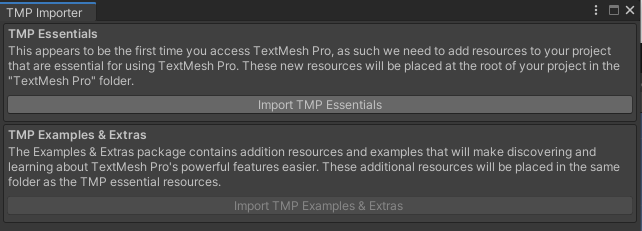
 Import the TMP in the popup:
 Resize button and change the values to your liking.
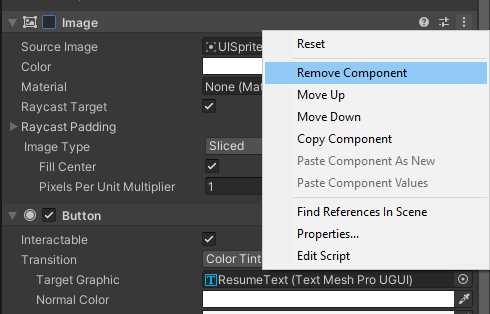
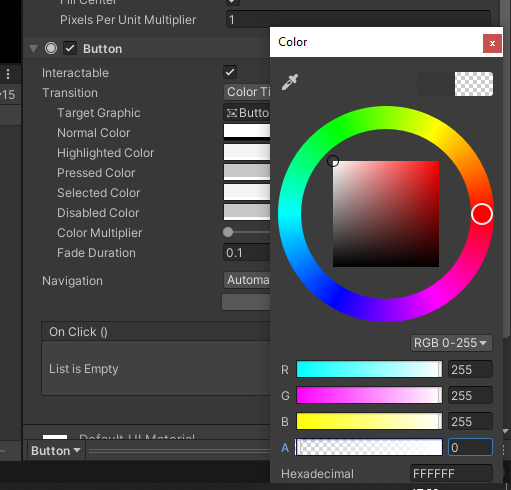 In the Button, remove the Image component:
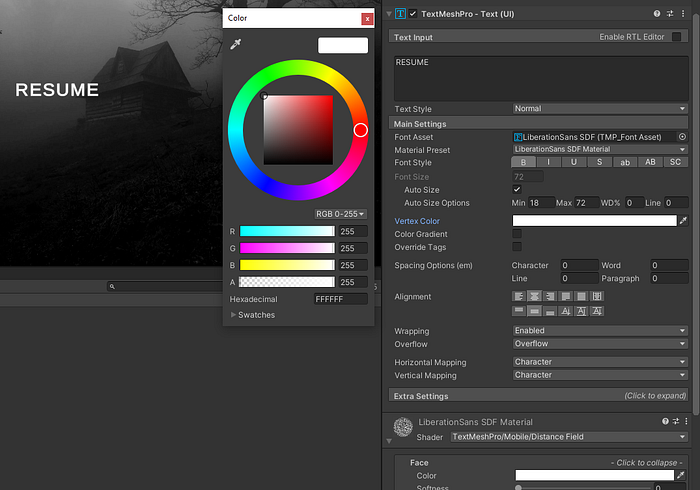
 Change the Text of the Button:
 In the Button settings, change the target graphic of the animation/fade changes to the text of the button:
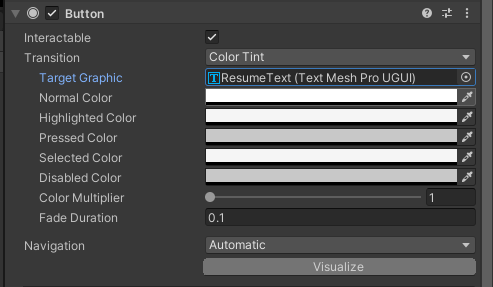 Play with the highlight/focus/mouseover options. I set the normal color to be slightly gray and highlighted color to be white.
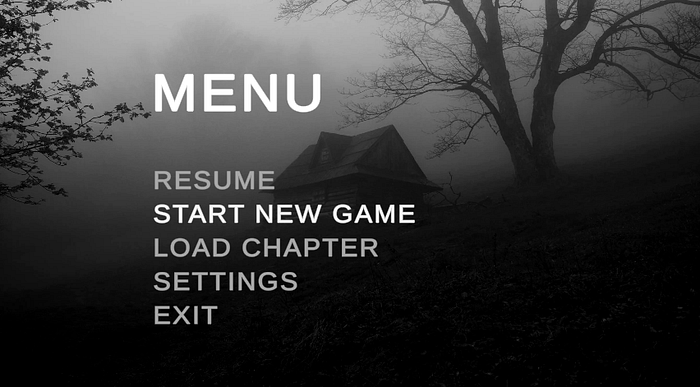 Duplicate the button a few times and add more menu options:
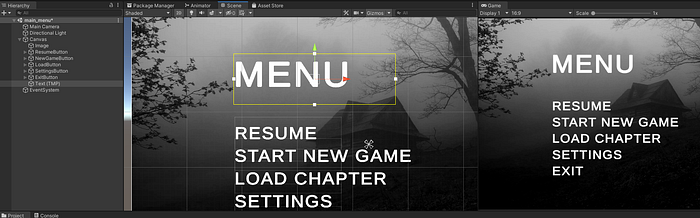
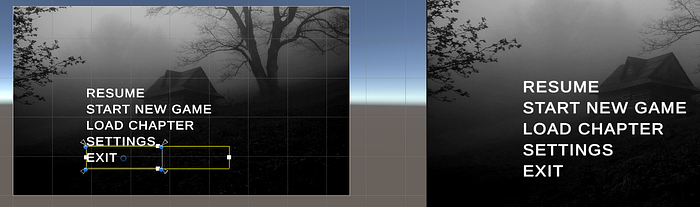 Add the title Text to the Canvas:
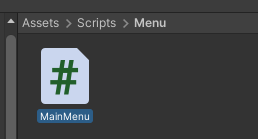
 Create a new script, that will hold the logic of the menu:
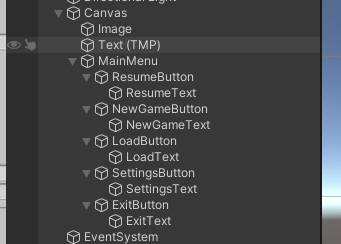
 Right click on the Canvas object, Create Empty object, call it Main Menu, and assign the buttons to it.
 Attach the script to the Main Menu object.
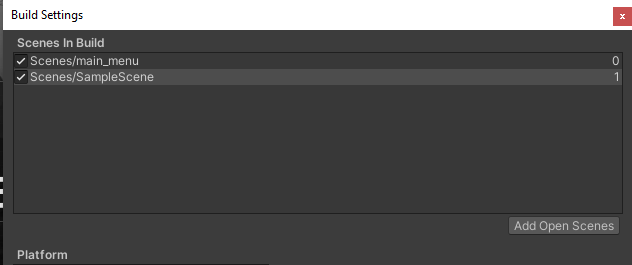
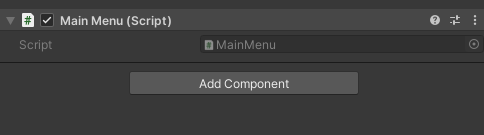 I want to make the New Game button start a new scene. For that I need to know the path to the scene.
Go to File -> Build settings and the scenes you have to the “Scenes in Build”. My New Game scene is the SampleScene.
I want to make the New Game button start a new scene. For that I need to know the path to the scene.
Go to File -> Build settings and the scenes you have to the “Scenes in Build”. My New Game scene is the SampleScene.
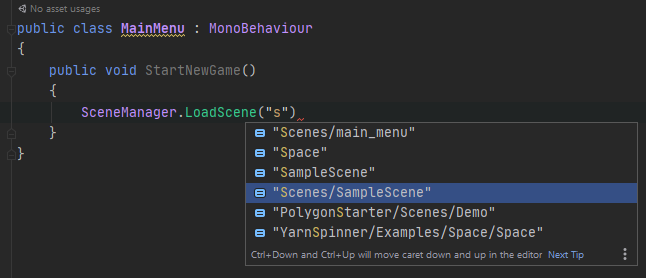
 In the script, use the SceneManager to load the scene in a new function that we will hook up to the button later.
 Go to the Button inspector and add a new OnClick event. Assign the MainMenu object to it, so it has access to its functions:
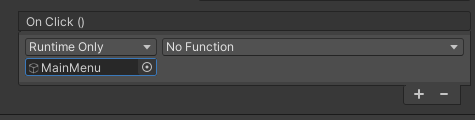 Choose the StartNewGame function (also change to editor and runtime if you want to be able to run it in the Unity editor):
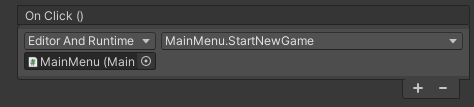 Similarly, assign function to the other buttons (Quit etc.):
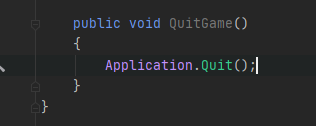
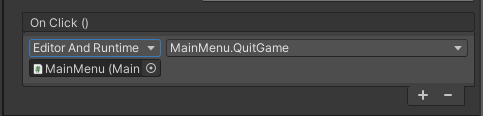 The settings button needs another submenu. Duplicate the MainMenu object and rename it and its sub-items:
 Deactivate it to hide it in the scene:
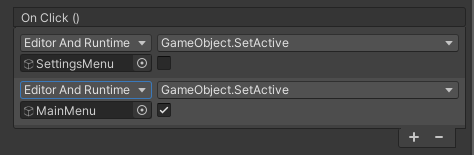
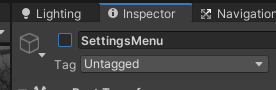 Add new OnClick functions to the SettingsButton (onclick hide the main menu and show the settings menu):
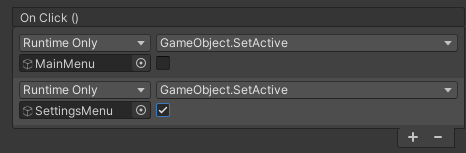 On the BackButton in the SettingsMenu do the opposite:
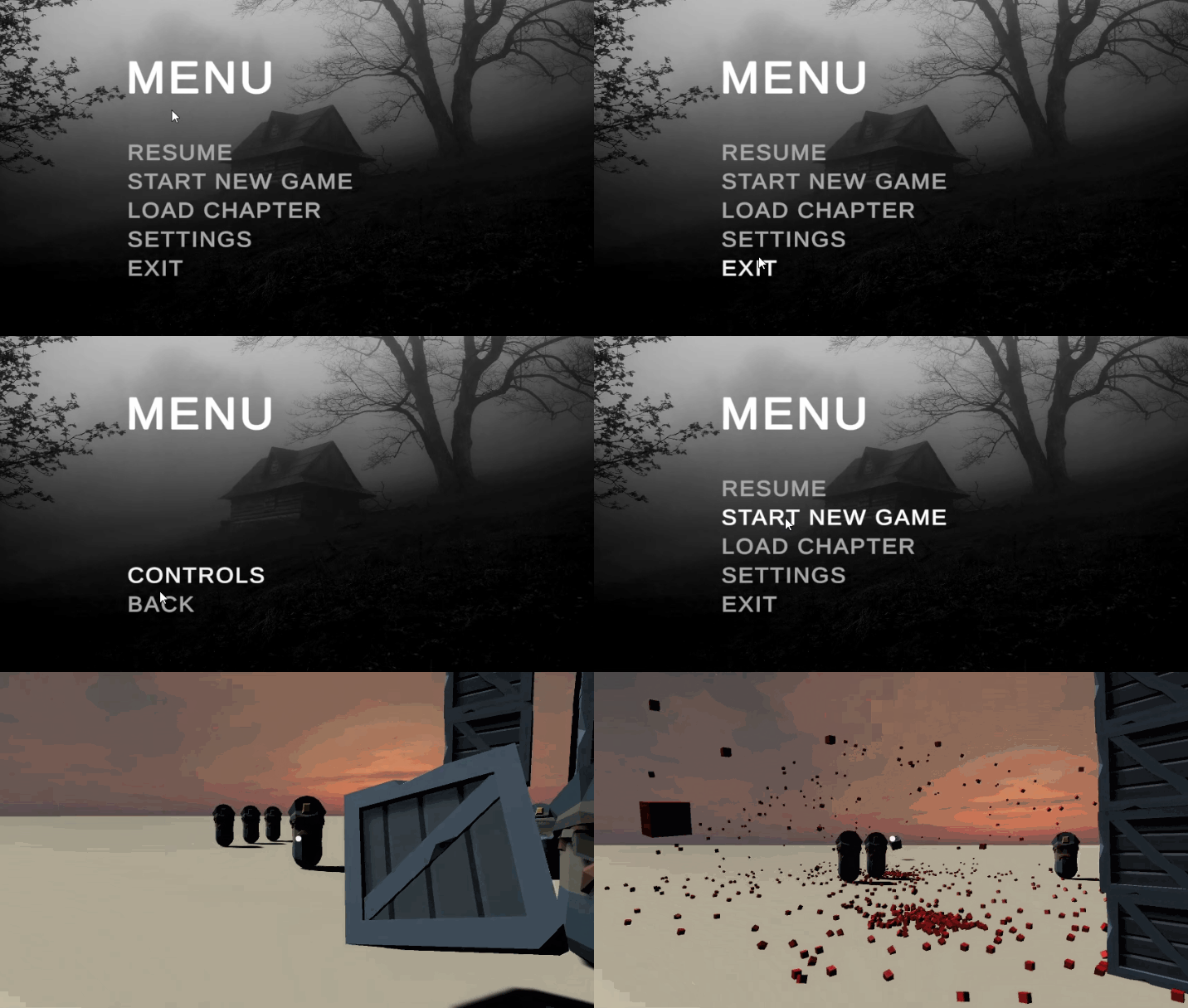
 After you hit play you can control the menu with your mouse, arrow keys or gamepad.
 If you are just starting to learn how to develop games, you can follow my udemy course on Unity development for beginners: