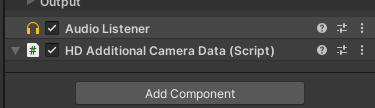
Add an audio listener to your camera (it should be there by default already):
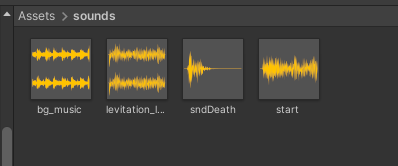
 Import your sounds:
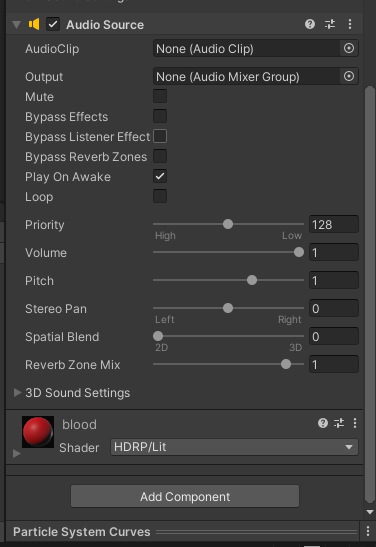
 Add Audio Source component to the objects you want to emit sound. I will add it to a “blood splash” prefab, that gets spawned every time enemy is killed.
 Add it an check Play on awake:
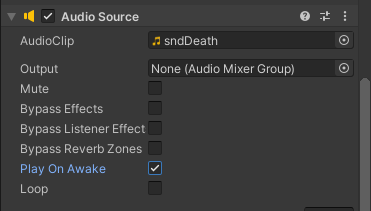 Now the sound will play every time a zombie is killed.
AudioManager
Audio Manager provides a long term solution for managing audio clips in a big project. You can also re-use this manager in every future gamedev project. So let’s get to it:
Create an empty object AudioManager and assign a c# script to it.

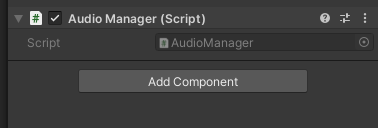 Next create Sound c# script.
using System;
using System.Linq;
using UnityEngine;
public class AudioManager : MonoBehaviour
{
    public Sound[] sounds;
    public static AudioManager instance;
    void Awake()
    {
        if (instance == null)
        {
            instance = this;
        }
        else
        {
            Destroy(gameObject);
            return;
        }
        // lives through transitioning
        DontDestroyOnLoad(gameObject);
        foreach (Sound sound in sounds)
        {
            sound.source = gameObject.AddComponent<AudioSource>();
            sound.source.clip = sound.clip;
            sound.source.volume = sound.volume;
            sound.source.pitch = sound.pitch;
            sound.source.loop = sound.loop;
        }
    }
    void Start()
    {
        Play("bg_music");
    }
    public void Play(string name)
    {
        Sound snd = Array.Find(sounds, sound => sound.name == name);
        try
        {
            snd.source.Play();
        }
        catch (Exception e)
        {
            Debug.LogWarning("sound not found");
        }
    }
}
using UnityEngine.Audio;
using UnityEngine;
[System.Serializable]
public class Sound
{
    public string name;
    public AudioClip clip;
    [Range(0f,1f)]
    public float volume;
    [Range(0f,3f)]
    public float pitch;
    public bool loop;
    [HideInInspector] public AudioSource source;
}
Then just add the sounds to the audio manager:
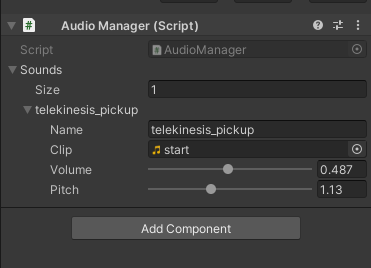 And play them from inside the code (in this case when the telekinesis power gets activated):
holdsObject = true;
FindObjectOfType<AudioManager>().Play("telekinesis_pickup");