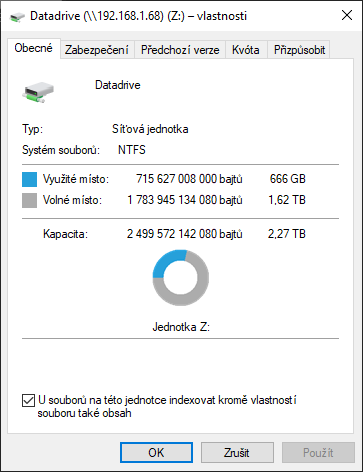
It all started when I got a new laptop that far superseded my desktop PC. It was time to re-utilize the desktop and make something useful out of it, especially when I have all this time in home isolation.
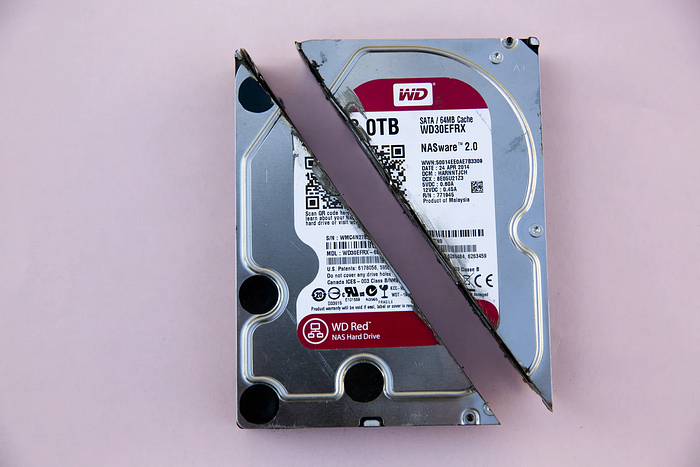
First I grabbed some old hard drives that were laying around — I had these old SATA drives with 320 GB, 400 GB and 500 GB capacities that I planned to use one day for… something. And that day has come.
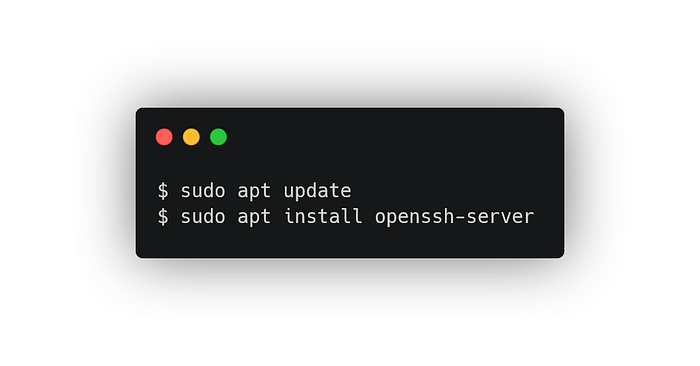
I wiped the desktop PC and installed the new Ubuntu Focal Fossa 20.04 on it. It took half an hour with an USB installer, made with Rufus. I also installed an ssh server for remote access.
 Then I took the PC apart, found some cables and slapped 5 HDDs inside and removed the old GPU, so the setup did not waste too much electricity.
Now is the time for the real “magic”. I wanted to merge the 5 disks into one big usable space that I could use for remote backups via samba server.
Then I took the PC apart, found some cables and slapped 5 HDDs inside and removed the old GPU, so the setup did not waste too much electricity.
Now is the time for the real “magic”. I wanted to merge the 5 disks into one big usable space that I could use for remote backups via samba server.
Logical Volume Manager
LVM is exactly the thing I needed. It’s a layer of abstraction working with the physical hard drives. You can use it to “merge” the physical disks into one tasty big chunk of usable space.
First I need to wipe the disks and format them to a LVM compatible file system.
These are the disks (I am writing this guide after it’s done, so the disk labels are already “post-LVM”, but the disks are the same):
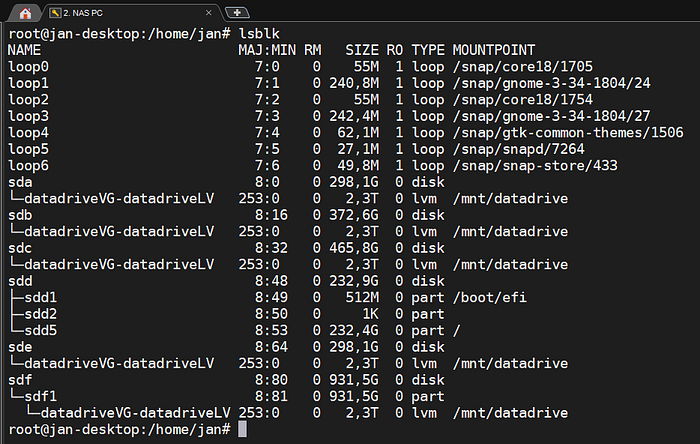 lsblk shows all the sdX
I started with /dev/sda, the 298GB disk.
Fdisk utility is powerful enough and easy to use, so let’s use that for the disk formatting. It has a simple CLI interface:
lsblk shows all the sdX
I started with /dev/sda, the 298GB disk.
Fdisk utility is powerful enough and easy to use, so let’s use that for the disk formatting. It has a simple CLI interface:
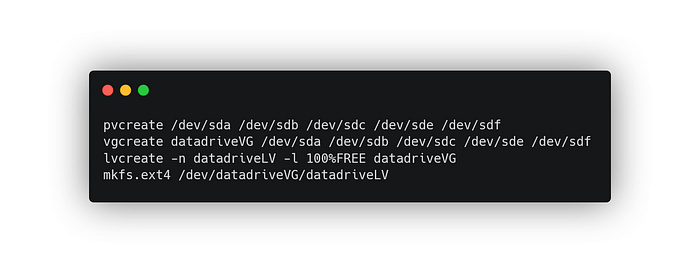
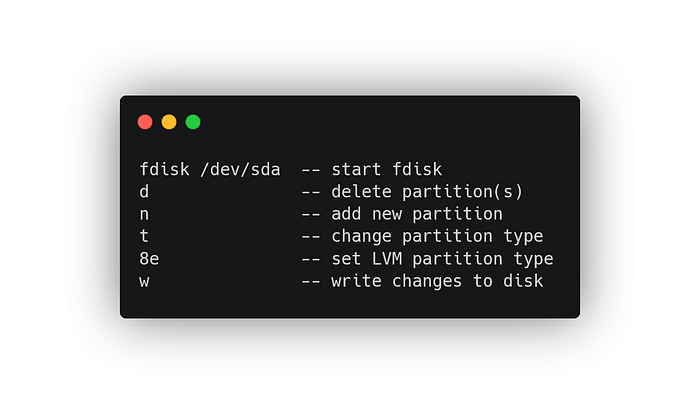 I did the same with the other disks. Now is the time for LVM. First I use pvcreate to register the individual disks as Physical Volumes. The I create a Volume Group called datadriveVG. After that I create a Logical Volume using 100% of the free space spanning across these disks, and format it all as ext4 filesystem.
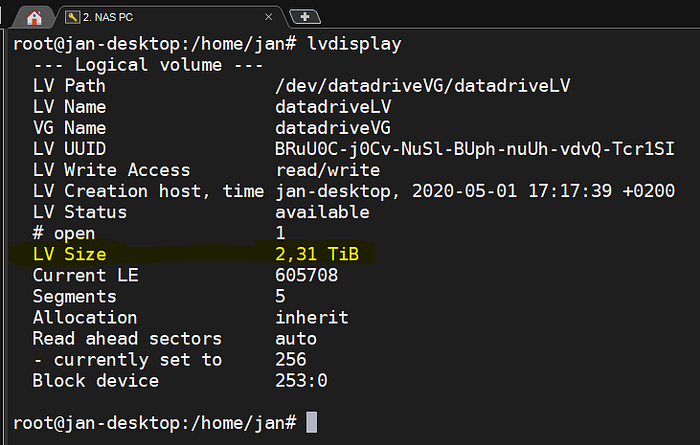 After merging the available space into one logical volume
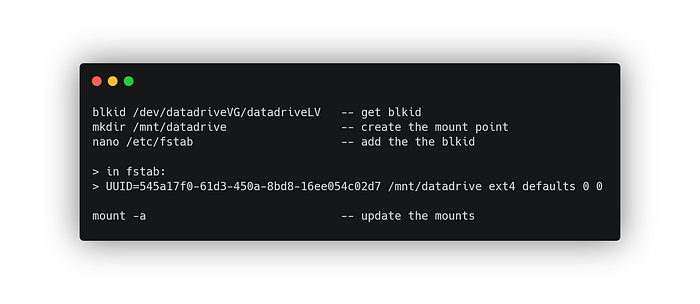
Then I create a mount point and register it in fstab, so the logical volume is mounted every time the PC reboots. For that I need to get the blkid of the volume.
After merging the available space into one logical volume
Then I create a mount point and register it in fstab, so the logical volume is mounted every time the PC reboots. For that I need to get the blkid of the volume.
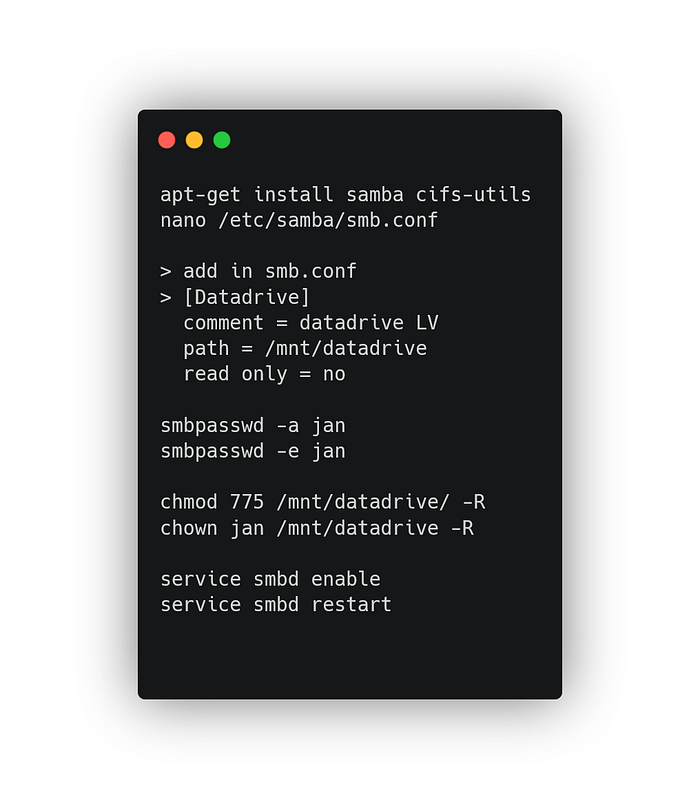
 Last thing I need to do is the samba server, so I can access it remotely from my windows as a network drive.
I install it via apt and edit the smb.conf file. Then I change the privileges of the new drive to be writable and I set the owner as myself. I also register my account and set a password for remote access. Final thing — I set the samba service to initialize after start and restart it to take the configuration changes into account immediately.
Last thing I need to do is the samba server, so I can access it remotely from my windows as a network drive.
I install it via apt and edit the smb.conf file. Then I change the privileges of the new drive to be writable and I set the owner as myself. I also register my account and set a password for remote access. Final thing — I set the samba service to initialize after start and restart it to take the configuration changes into account immediately.
 Then I add the whole thing as a network drive in my Windows, and we are DONE.